Instructions to integrate GA to CDN
This integration is for clients to view Lead/Non- Lead on their GA account basis the chats taken by Commversion.
Step 1:
- Navigate to https://cdn.commversion.com/accounts
- Login the account
Step 2: Find the Client
- Type in the client name in the search field to find the relevant client and click Enter.

Step 3: Once you've navigated the client
- Click on the client to pull up the side panel

Step 4:
- Click "EDIT" to access their settings

Step 5:
- Scroll down to the "Scripts" section

Step 6:
- Click the "+" to add a new field.

Step 7: Add the script
- Enter the GA Integration Script Link: https://cdn.jsdelivr.net/npm/@commversion/libs@0/dist/lc-ga-tags.js
Step 8:
- Click "SAVE"

Step 9:
- Scroll down to the "Tags & Google Analytics" section and click the "Enabled" toggle to turn it on

Step 10:
- Click the "GA User Account ID" field and enter the clients GA User Account ID

Step 11:
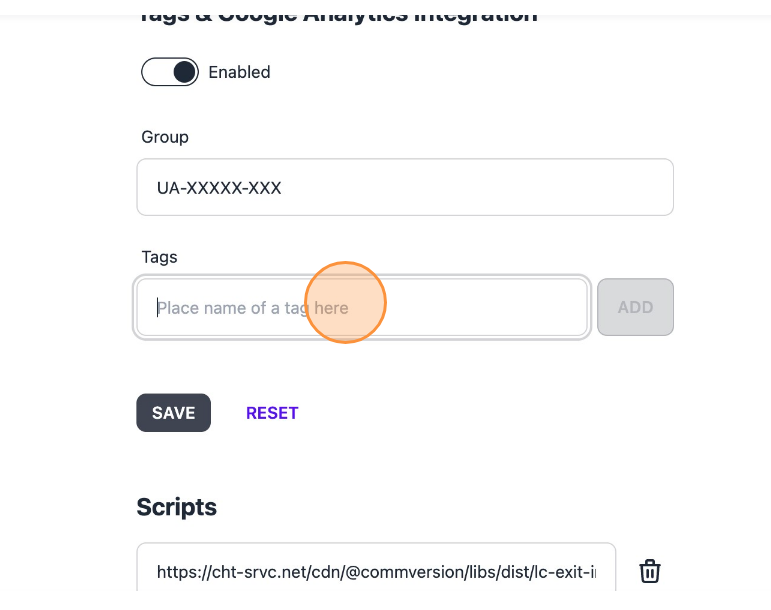
- Click the "tags" field.
Step 12:
- Type in the tag you want to be tracked in GA. This is case-sensitive so please type it exactly as it is on LC, For example, 'Lead'
Step 13:
- Click "ADD" to save it

Step 14:
- Repeat steps 12-14 to include all the necessary tags. We recommend the following: Lead | Non-lead | Buyer | Seller | Landlord | Tenant and any other client specific lead types

Step 15:
- Type "Non-Lead"
Step 16:
- Click "SAVE". Once saved the changes should be live within an hour and events should start appearing within GA (delayed due to caching times of CDN)

Was this article helpful?
That’s Great!
Thank you for your feedback
Sorry! We couldn't be helpful
Thank you for your feedback
Feedback sent
We appreciate your effort and will try to fix the article