This document provides a comprehensive overview of IP addresses, their purpose, and how they are used within Commversion for blocking and whitelisting scenarios.
What is an IP Address?
An IP (Internet Protocol) address is a unique identifier assigned to a device connected to a network. It helps systems identify and communicate with each other over the internet.
Overview: Blocking vs Whitelisting
At a high level, IP addresses can either be blocked or whitelisted, depending on the client’s requirements.
Blocking IP Addresses
Blocking is typically used in the following scenarios:
- When a client finds the live chat widget intrusive during important user journeys and wants to prevent it from appearing for specific users.
- When a client receives spam or unwanted chats and requests that certain users be restricted from initiating conversations.
Whitelisting IP Addresses
Whitelisting is used to allow access or ensure proper functionality. Common use cases include:
- Allowing Commversion emails or communications through strict client security systems.
- Ensuring agents can access client websites that may have geo-restrictions.
- Allowing Commversion platform services to function without interruption.
Detailed Use Cases & Steps
A) Blocking a Client’s IP Address
This action is handled internally.
Steps:
- Request the list of IP addresses from the client.
- Identify the client’s license and log into the appropriate account.
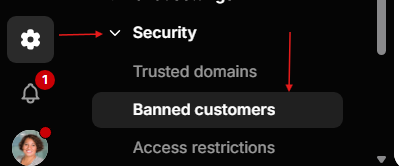
- Navigate to: Settings → Security → Banned Customers
- Add the IP address(es).
- Select the longest available duration for the ban.
B) Whitelisting Commversion Platform IPs
This is important when:
- Clients report not receiving leads or emails from Commversion.
- Client security systems may be blocking external communications.
Action:
- Share the list of Commversion platform IPs with the client.
- Ask their IT team to whitelist these IPs within their systems.
Production Ips:
18.190.33.237
Development Environment Ips:
3.133.62.153
3.135.59.187
18.190.39.60
Local Testing Environment
172.216.25.144
Domains
1. commversion.com,
2. commversionsolutions.onmicrosoft.com,
3. myfreshworks.com,
4. freshdesk.com,
5.commversionlivechat.com,
6. mg.commversion.com,
7. mgdev.commversion.com.
8. excl.cloud
9. workos.com
C) Whitelist Commversion Office IPs
This applies when:
- Agents are unable to access a client’s website due to geo-restrictions.
Some clients restrict website access based on location, which can prevent agents from viewing the site and assisting customers effectively.
Action:
- Share the official Office IP list with the client.
- Request their IT team to whitelist these IPs to ensure uninterrupted access for all in-office agents.
This is the document that contains all the Office IPs, which can be used to share with the client to whitelist https://commversioncom.freshdesk.com/en/support/solutions/articles/88000057928-ip-addresses-to-be-whitelisted
D) Whitelisting Agents’ (Operational) IPs
This works alongside Point C.
Use case:
- Agents working remotely are also unable to access client websites due to geo-blocking.
Important considerations:
- Agent IPs are dynamic (change frequently).
- Team members may join, leave, or work from different locations.
Action:
- Reach out to the IT Department to obtain an updated list of agent IPs for a specific client.
- Share this list with the client for whitelisting.
We hope this document helps clarify how IP addresses are managed within Commversion.
If you have any questions or need further assistance, please reach out to the Customer Heroes Team, who will be happy to help.
Was this article helpful?
That’s Great!
Thank you for your feedback
Sorry! We couldn't be helpful
Thank you for your feedback
Feedback sent
We appreciate your effort and will try to fix the article